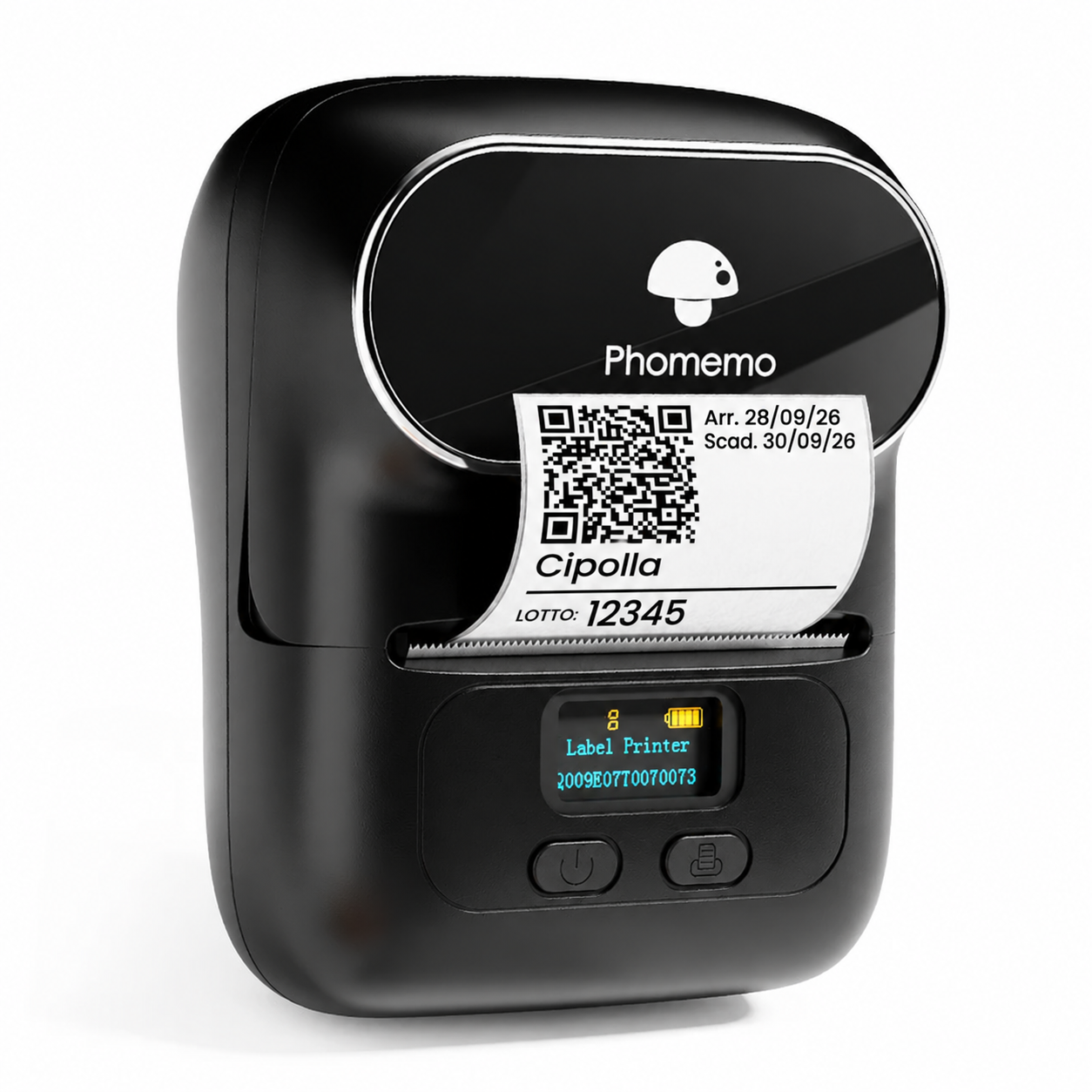
The printer is purchased separately from your subscription. Request it from EleCCP through the app for €70 + VAT.
Also available to buy on Amazon or from another retailer.
Check the exact model: Phomemo M110. For label rolls, choose 40 × 30 mm self-adhesive, die-cut thermal labels. You can also buy them on Amazon or from other suppliers, checking the size and compatibility in printer bundles too.
The initial pairing process depends on your device. Follow the steps for Android or iOS.
Before you start, turn on the printer, load the label roll and enable Bluetooth on your device. Keep the M110 close to your device.
Android
First pair the printer in your device settings.
Open Bluetooth settings on your phone or tablet, find the Phomemo M110 among the available devices and confirm pairing.
Open EleCCP, go to the Printer screen and tap Connect. Grant Bluetooth or nearby device permissions if requested.
Select the M110 from the paired printers and wait for it to show as connected.
Not in the list? Check that pairing is complete in Bluetooth settings, then tap Refresh in EleCCP.
iOS · iPhone
Pair the printer directly in the EleCCP app.
Open EleCCP on your iPhone and go to the Printer screen.
Tap Connect and allow EleCCP to use Bluetooth if requested.
Select the M110 from the printers found by the app and wait for it to show as connected. Pairing happens here, without going through iOS Bluetooth settings.
Printer not found? Close the Phomemo app or any other apps connected to the printer, then tap Refresh in EleCCP.
Now choose your label
With the printer connected, choose a label layout in the app that matches the loaded roll. Use 40 × 30 mm for the reference configuration. Print a first label and check that the text and QR code are legible.
Frequently asked questions
Before you buy and print
Is the printer included in the subscription?
No. The printer is purchased separately with both monthly and annual plans. Request the Phomemo M110 from EleCCP through the app for €70 + VAT, or buy the same model independently.
Can I use a Phomemo M110 I already own?
Yes, you can use a Phomemo M110 purchased independently. Check the exact model and load the 40 × 30 mm labels used by the EleCCP reference configuration.
Can I use another Bluetooth printer?
Compatibility depends on the model: having Bluetooth alone is not enough. The reference model listed on this page is the Phomemo M110. For other models, contact us before purchasing.
Which label rolls should I buy?
Choose rolls of 40 × 30 mm self-adhesive, die-cut thermal labels compatible with the Phomemo M110: individual labels must be pre-cut and separated by gaps on the backing. Rolls are also available on Amazon or from other suppliers. Check the size and compatibility in printer bundles too. Choose label material according to the surface and conditions of use, following the label manufacturer’s guidance.
How do I connect the printer to EleCCP?
On Android, first pair the M110 in your phone or tablet’s Bluetooth settings, then open Printer in EleCCP, tap Connect and select it. On iOS, pair directly in EleCCP: open Printer, tap Connect, allow Bluetooth access and choose the M110. Follow the setup guide above for the detailed steps.
How many printers do I need for multiple sites?
Plan for one printer at each site that prints labels. Connect the printer locally at the site where it will be used.